GTM debug

Google Maps routes

Send Google Maps routes to Sygic Professional Navigation

Plan routes in Google Maps, send them to your driver’s device, and let Sygic calculate navigation using the truck, van, cargo, and route settings in the app.

Go digital with Google Maps routes

Need Google Maps routes for your fleet or platform?

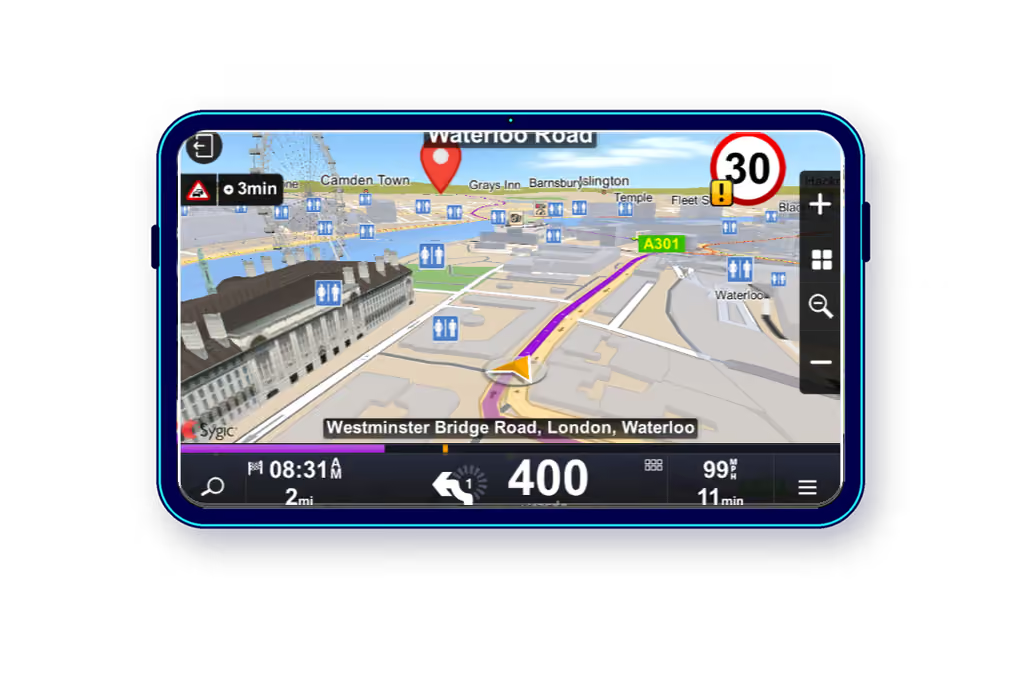
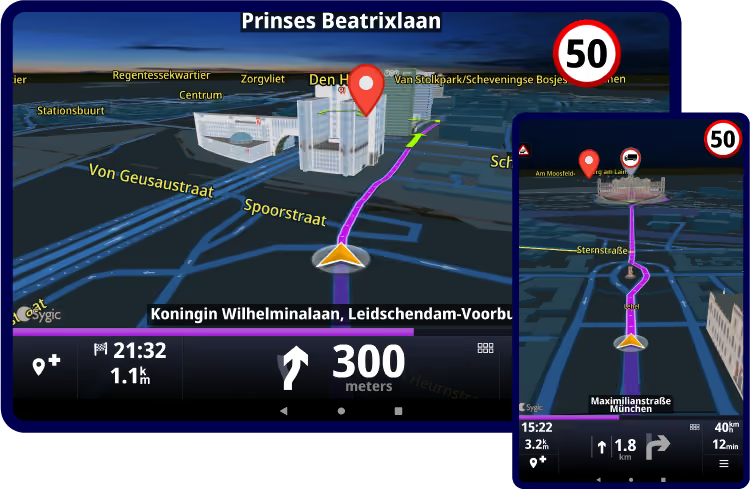
Tablet screen showing 3D navigation map for Westminster Bridge Road, London, with route and landmarks.

Tell us how you plan and send routes today. We will help you choose the right Sygic setup, answer pricing questions, and support the next technical step.
Plan in Google Maps. Navigate with truck settings in Sygic.

Google Maps is useful for quick route planning, but it does not calculate routes based on truck dimensions, weight, transported materials, or other commercial vehicle settings.
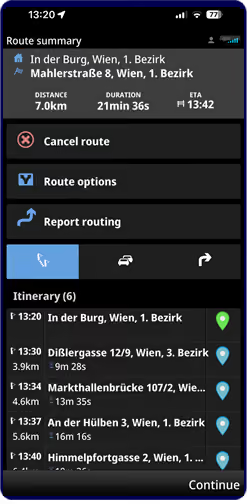
With Sygic Truck Route Sender, you can plan a route in Google Maps and send it to the Sygic app in your setup. The route is then calculated on the driver’s phone or tablet using the truck or van profile configured in the app.

Plan with Google Maps search

Find the destination and add stops in Google Maps, up to the Google Maps stop limit.

Send to the driver’s device

Select a driver from the extension contact list and push the route to the Sygic app.

Navigate with truck and van settings

Sygic calculates the route on the device using vehicle dimensions, weight, transported materials, and other route settings configured in the app.

How it works: Start sending routes in three steps

Step 1

Prepare the Sygic app

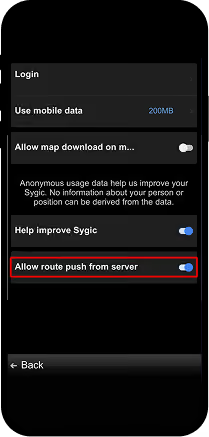
Install the Sygic app used in your setup on the driver’s phone or tablet. Then enable route receiving in the app settings.

  • Go to Settings → Connection
‍
  • Allow Route push

Google PlayApp Store
Step 2

Install the browser extension

Install the free Sygic Truck Route Sender extension for Google Chrome or Mozilla Firefox.

  • Open the extension and add your drivers to the contact list
  • Connect them using the device name from the Sygic app or an email registered in My Account
Step 3

Plan in Google Maps and push to Sygic

Create a route in Google Maps, add stops, open the extension, select the driver, and click Push to Truck App.
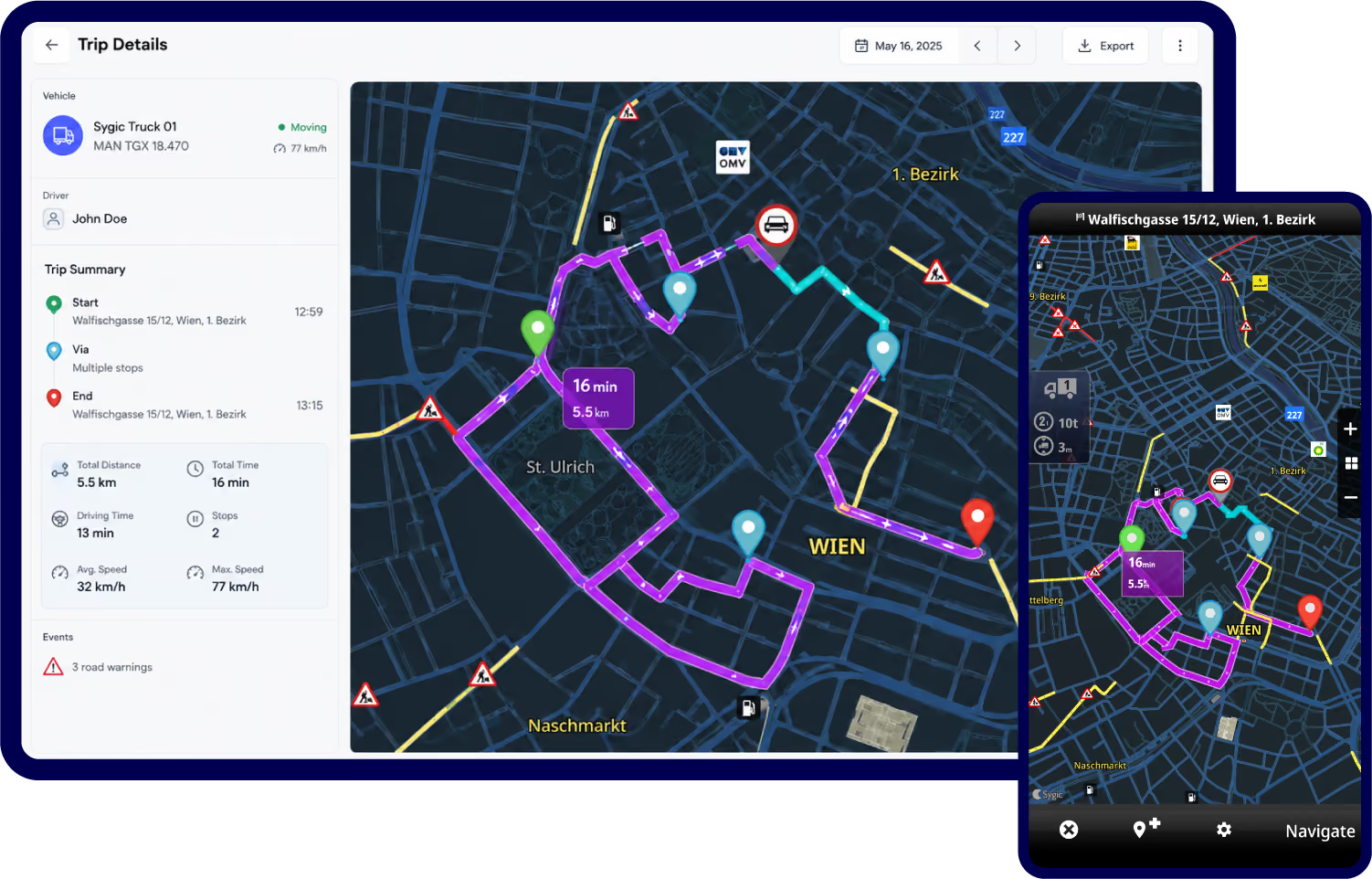
  • If the Sygic app is running, the route is calculated on the phone right away
  • If the app is closed, the driver receives a notification about the new route

Start sending routes from Google Maps

Install the browser extension to send planned routes from Google Maps to the Sygic app used in your setup.

Need more than Google Maps route sending?

If you need deeper integration, planned route handover, or navigation connected to your fleet platform, we can help you choose the right setup.

Talk to an expert

Tell us what you want to get done. Our project team will help you choose the right integration model and guide the next step, from technical discussion to demo or trial setup.

Let´s talk

Success
Thank you! Your submission has been received!
We will contact you soon
Oops! Something went wrong while submitting the form.